SupportOrder Management
How to Connect Your Shopify Store to Handled
This article walks you through creating a Shopify app and sending Handled the information we need to connect your store.
Step 1: Open Shopify Apps
Login to Shopify and go to:
Settings → Apps → Develop apps
Then click Build apps in Dev Dashboard.
This will open a new tab.
Step 2: Create a New App
Click Create app.
Name the app:
Handled
Then click Create.
Step 3: Add Required Scopes
Scroll down to the Scopes section.
Copy and paste the following scopes, which are required to work with Handled:
write_orders,
read_orders,
read_all_orders,
read_products,
write_products,
read_product_listings,
read_customers,
write_customers,
read_third_party_fulfillment_orders,
write_third_party_fulfillment_orders,
read_draft_orders,
write_draft_orders,
read_inventory,
write_inventory,
read_locations,
read_fulfillments,
write_fulfillments,
read_shipping,
write_shipping,
read_merchant_managed_fulfillment_orders,
write_merchant_managed_fulfillment_orders,
read_assigned_fulfillment_orders,
write_assigned_fulfillment_orders
Step 4: Release the App
Scroll to the bottom and click Release.
You do not need to enter a version name.
Click Release again to confirm.
Step 5: Install the App on Your Store
Go back to the Dev Dashboard (Settings → Apps → Develop apps → Build apps in Dev Dashboard)
Click the newly created Handled application.
Click Install app.
A new tab will open.
Select your store.
You will be taken to a new page.
Click Install.
Step 6: Find Your App Credentials
Go back to the Dev Dashboard (Settings → Apps → Develop apps → Build apps in Dev Dashboard)
Click Settings.
Click API Credentials.
Shopify shows more than one set of credentials for apps, so make sure you are on the API Credentials page. It should look similar to the screenshot below:
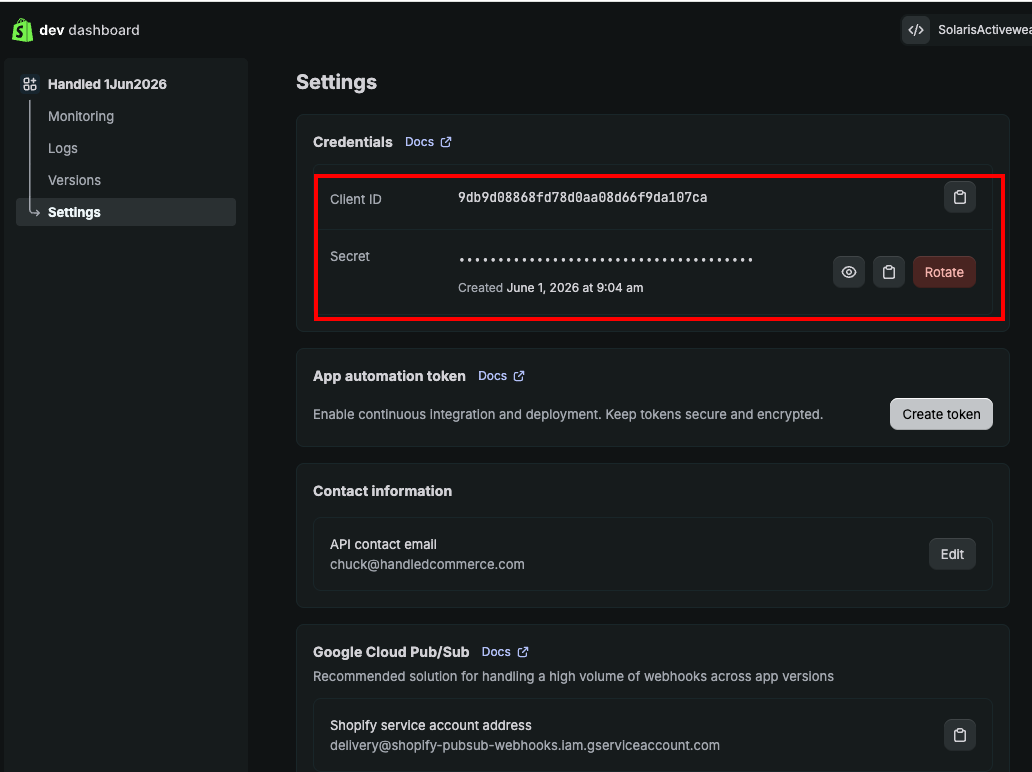
Please send Handled the following:
Client ID
Secret
Step 7: Find Your Shopify Store Name
We also need your Shopify store name.
You can find this in your Shopify admin URL. It usually looks like this:
https://admin.shopify.com/store/your-store-nameIn this example, the Shopify store name is:
your-store-namePlease send us the store name exactly as it appears in the URL.
Step 8: Email the Information to Handled
Email the following information to:
Include:
Client ID
Secret
Shopify store name
Once we receive this information, our team will complete the connection on our side.
Don’t Forget: Set Up Your Shopify Locations
In addition to creating the app, your Shopify locations need to be set up correctly so Handled can fulfill orders from the right warehouse location.
Please make sure the applicable Handled warehouse locations have been added to Shopify and are configured for fulfillment and shipping.