SupportOrder Management
How to Automatically Hold Shopify Orders Using Shopify Flow
Handled receives orders from Shopify almost instantly, and once received, we begin processing them as soon as possible. That means there’s often little to no time to make manual changes before fulfillment starts. If you want to delay fulfillment—whether to review, edit, or verify an order—it’s important to place the order on hold directly in Shopify before it reaches Handled.
Understanding Fulfillment Status in Shopify
When an order is placed in Shopify, it receives a Fulfillment Status, which controls whether or not it is sent to Handled.
- If an order is marked as “Unfulfilled”, Shopify immediately makes the fulfillment request.
- If an order is placed “On Hold” (also called “On Hold for Fulfillment”), the request is blocked until you or Shopify Flow release it.
✅ Handled will not receive or begin processing any order that is on hold in Shopify.
Using Shopify Flow, you can automatically control this status based on your business rules.
Automatically Hold Orders
If you need time to review, modify, or delay certain orders before they're sent to Handled for fulfillment, Shopify Flow allows you to automatically place orders on hold the moment they’re created.
We’ve created a sample Shopify Flow that automatically manages fulfillment status to give you a review window. Here’s how it works:
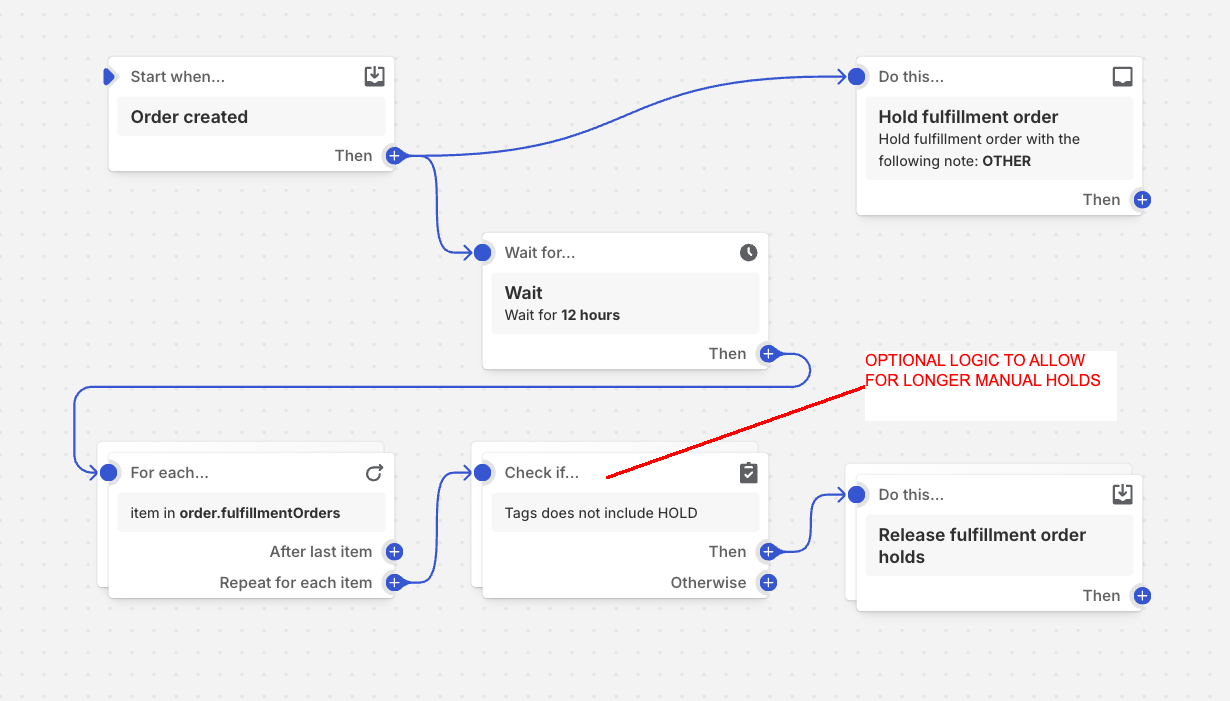
- Holds all orders immediately upon creation by setting the fulfillment status to On Hold.
- Waits 12 hours to give you time to review or modify the order.
- Checks for a tag on the order that contains the word "Hold":
- If no Hold tag is found, the fulfillment is automatically released, and the order is sent to Handled for shipping.
- If a Hold tag is present, the order remains on hold indefinitely until you manually release it in Shopify.
This setup helps prevent unintended fulfillment and gives your team time to catch errors or apply special handling.
How to Set Up the Flow
In your Shopify Admin, go to Apps > Shopify Flow.
Click Create Workflow.
Create a workflow using logic similar to the following:
Step 1: Trigger
Use the trigger:
Order created
Step 2: Action
Add an action to place the fulfillment order on hold.
Use Shopify Flow’s fulfillment hold action to hold the fulfillment order before it is released to Handled.
Step 3: Wait
Add a wait step for your desired review period.
Common examples:
- 2 hours
- 12 hours
- 24 hours
Step 4: Check for Hold Criteria
Add a condition that checks whether the order should remain on hold.
For example:
- Order tags include Hold
- Order is international
- Order value is above a certain amount
- Order requires fraud review
- Order requires customer confirmation
Step 5: Release or Keep the Hold
If the order does not meet your hold criteria, add an action to release the fulfillment hold.
If the order does meet your hold criteria, leave the order on hold until your team manually reviews and releases it in Shopify.
Customizing the Flow
You can modify this workflow to match your business needs by:
- Changing the wait time
- Holding only certain types of orders
- Holding high-value orders
- Holding international orders
- Holding orders with specific products
- Holding orders with fraud risk signals
- Using specific tags like Hold - Fraud Review, Hold - Customer Change, or Hold - Address Issue
📝 Summary
Using Shopify Flow to manage fulfillment status gives you:
- More control over when orders are released to Handled
- A reliable way to prevent premature shipping
- A buffer period to catch issues or apply changes
- Flexibility to hold specific orders longer using tags
💡 We recommend this method if you frequently review, edit, or delay orders before shipping.